Overview
This condition is potentially encountered in Microsoft Windows when connecting a CanFly® USB adapter. It is caused when the CanFly® serial data is misinterpreted as mouse data by the serial port enumerator (serenum.sys), resulting in erratic mouse cursor activity. The following steps will cure the “crazy mouse” syndrome with CanFly® USB to serial adapters. These instructions were tested in Windows 10 and can be adapted for Windows 8, 7 or XP operating systems.
##Unplug or Disable the Serial GPS Device
To gain control of the mouse, first make sure that the attached CanFly® devices are powered down. The CanFly® adapter is powered by the USB bus so plugging in the adapter to the PC will enable it. Keep the USB to serial adapter connected to the USB port. Locate the USB Serial COM Port in Windows Device Manager
Access the Power Users Menu by right-clicking the Windows icon (or Start button) in the lower left corner of the screen. Alternately, press the keyboard shortcut: [Windows key] + X. Select Device Manager from the menu by left-clicking with the mouse. If using keyboard shortcuts, press the letter ‘M’.

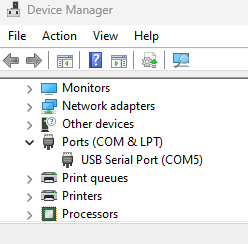
In the Device Manager window, expand the ‘Ports (COM & LPT)’ section by clicking on the ‘>’ or triangle as shown.
Under ‘Ports (COM & LPT)’, double-click on the USB serial device entry to bring up the Device Properties dialog box. CanFly®.
##Disable the Serial Port Enumerator (serenum.sys)
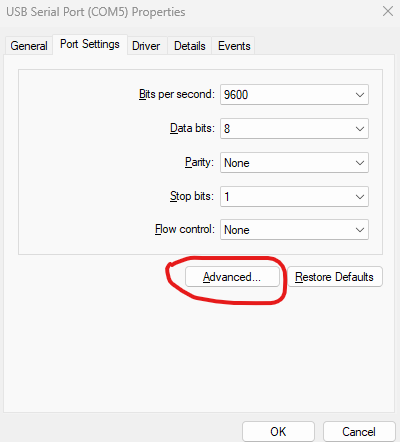
In the Device Properties window, click the ‘Port Settings’ tab. Then click the ‘Advanced’ button, as shown, to open the Advanced Settings window.
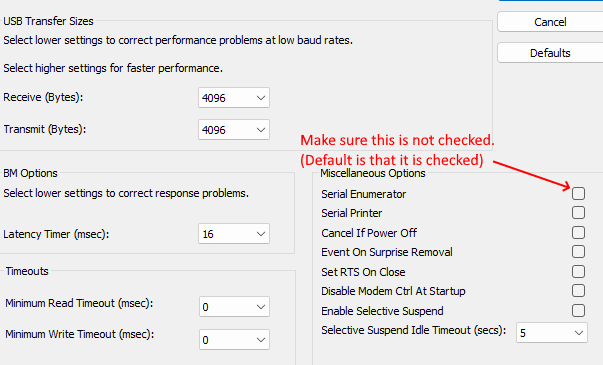
In the Advanced Settings window, locate the Miscellaneous Options section and uncheck the box for ‘Serial Enumerator’, as shown. This will prevent serenum.sys from being associated with this COM port.
Click the OK button to confirm your changes.
Click the OK button to close the Device Properties window.
Close the Device Manager by clicking the ‘X’ in the top-right corner.